Easy voxel art for Unity
A pipeline for original voxel characters - model in MagicaVoxel, auto-rig in Mixamo, animate, and drop the result into Unity.
Before reading this article, please see this short animation:
And this is voxel. Basically, voxel art is like pixel art but in 3D. Instead of having pixels in a 2D canvas, you add 3D units to the space. These 3D units are commonly small enough and always the same size. As usual, people with a lot of talent and imagination create awesome worlds with this art style - like a Zelda remake.
But today we are not here to rant about people with talent, but to create original awesome characters - and worlds too - ready to use in our Unity projects.
Do you remember MS Paint? We are using a similar tool to build our models. It is named MagicaVoxel and, most important, it's free.
Once you become acquainted with this application and all its tools, you need a character model with the famous "T pose".
This is me creating a cheap Mario clone; watch the complete video here.
There are a couple of details you should take into account when designing your character model:
- It should be humanoid
- It should have legs and arms
- Perhaps it might be toony - take care of the proportions
- Fingers on hands are optional
- It is easier if the character is in T position
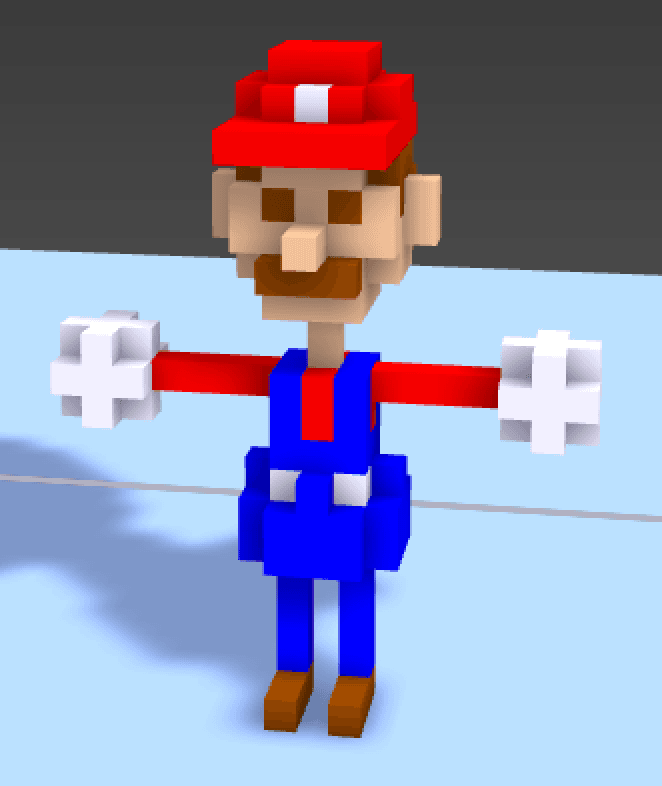
If you followed the previous tips, your character might look something like this:
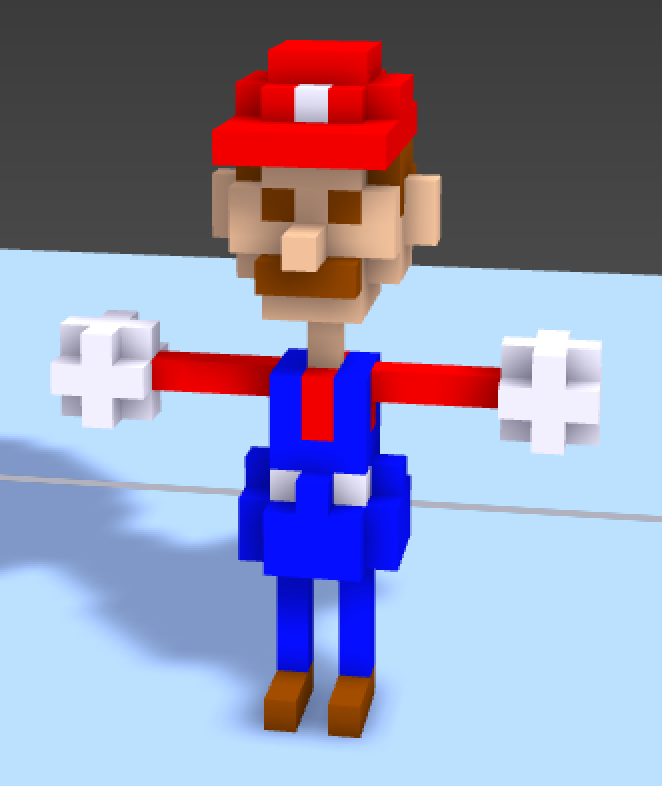
Export your character in obj format. Now you are ready for the next step.
Rigging
Create an Adobe account if you haven't, and browse to Mixamo. Upload your model - the .obj file - and start with the auto-rigging tool. Set the anchor points like this:
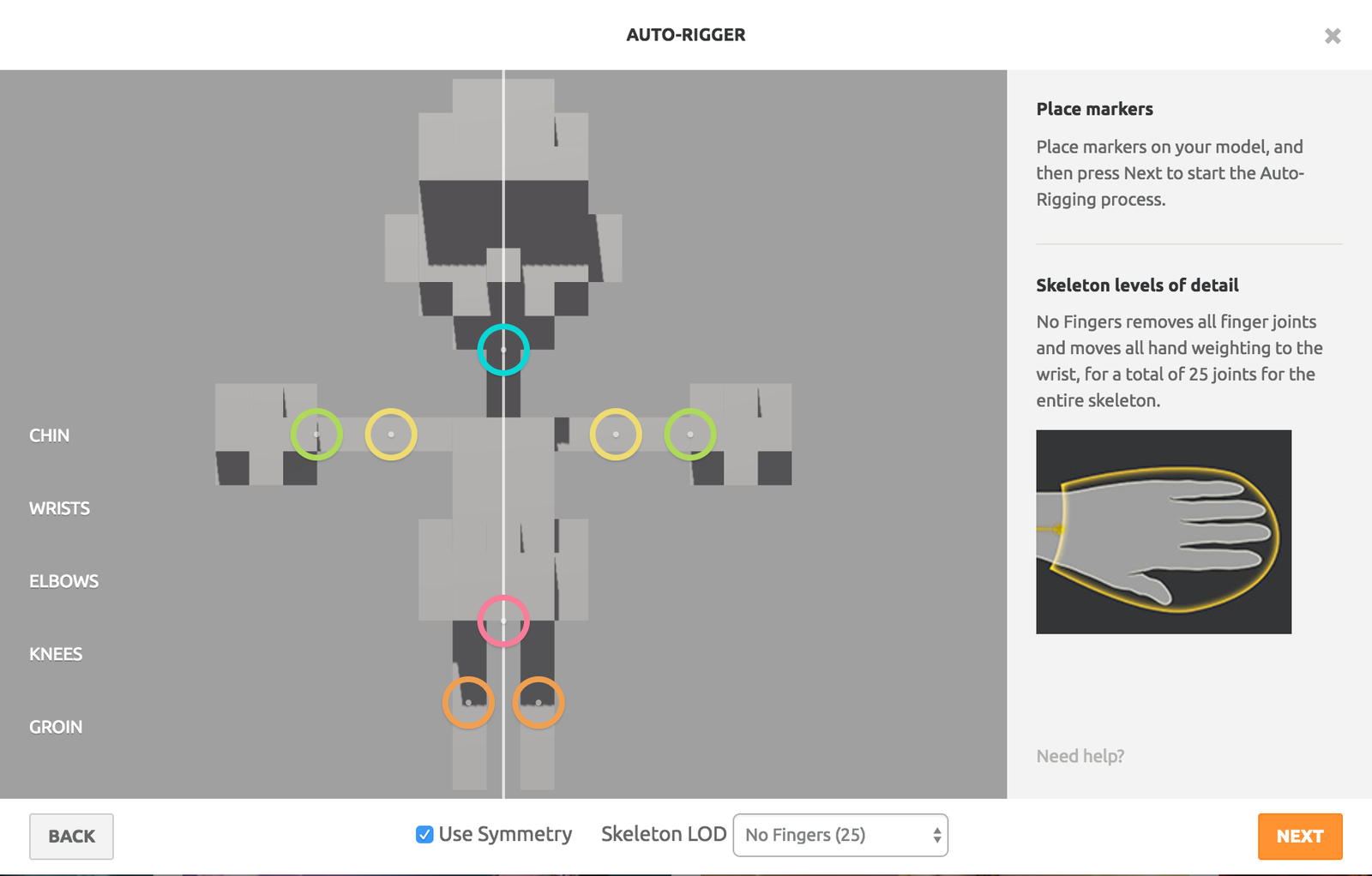
Please note the dropdown selection at the bottom side. Selecting "No Fingers (25)" for Skeleton LOD is essential. Otherwise your model won't be processed correctly.
If your model is different, or the auto-rigging tool doesn't recognise the character properly, just try again moving the anchor points around the places they are supposed to be. When the model rigging is done, you should be able to see it in movement. It works like magic.
Animations
Let's give a try to the animations. Luckily, Mixamo has a ton of different animations. Most of them have configurable parameters to fit almost every model. I didn't have issues with mine.
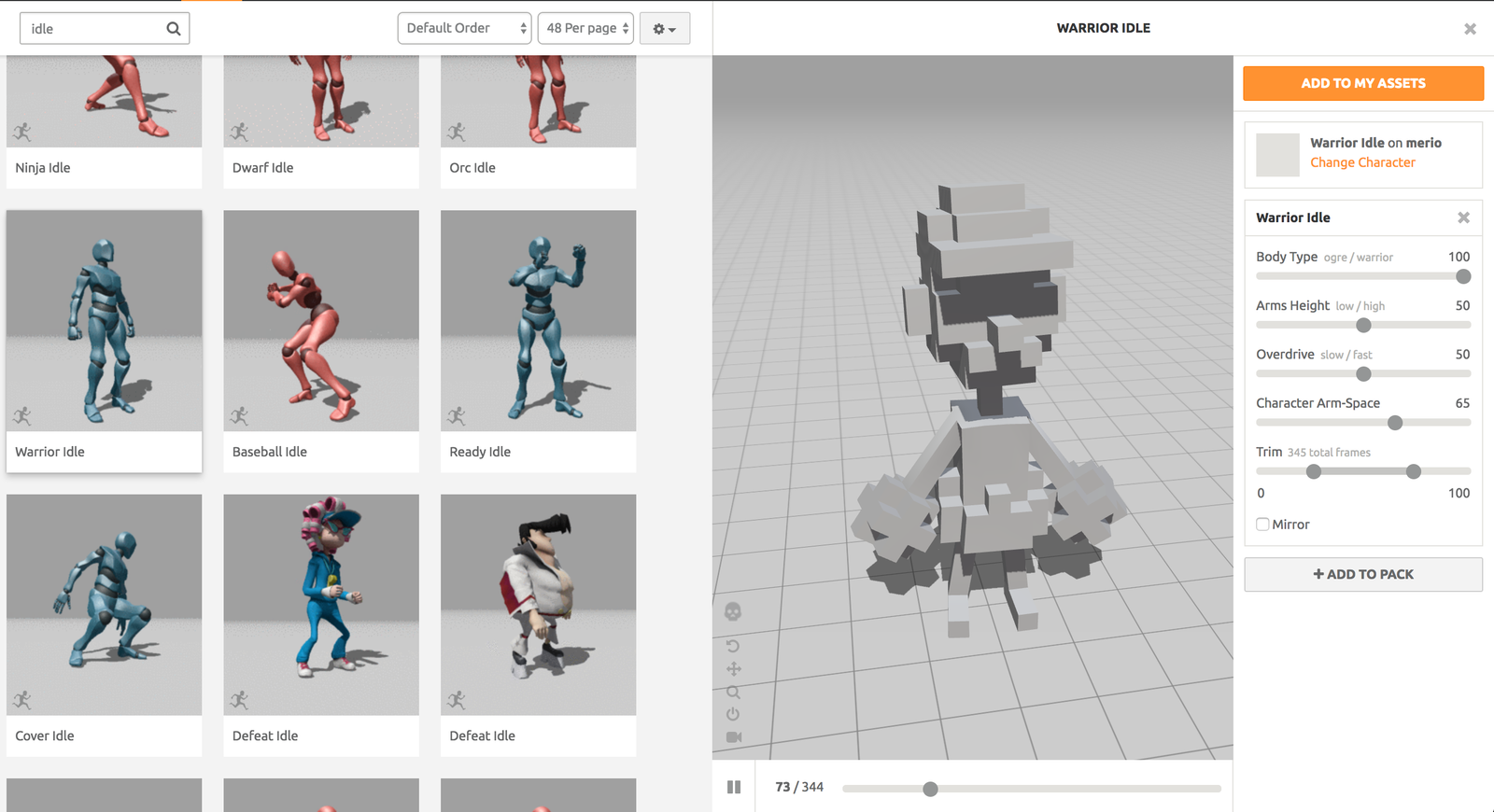
Take all you need, create a pack and download it as FBX for Unity.